
A tattoo belongs on skin — not on a T-shirt, and not on the wall behind you. The mask is the app's answer to one simple question: which part of this photo is skin?
It is made for you
You don't have to draw anything. As soon as you pick a photo, the app finds the person in it and marks the bare skin. Your tattoo appears only inside that area and stops at its edge — that is why it doesn't slide onto clothing while you move it around.
When to touch it
Sometimes the app misses: the tattoo creeps onto a sleeve, or a piece of an arm is left out. Tap Mask on the try-on screen and fix it in a few strokes. Your photo and your tattoo are never changed — only the area the tattoo is allowed to show in.
What a good mask looks like
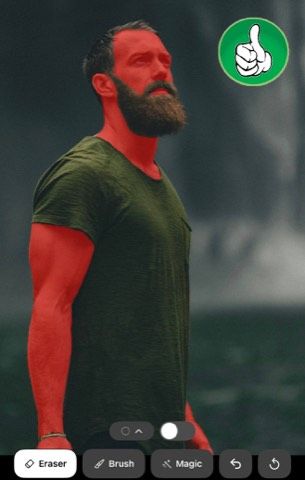
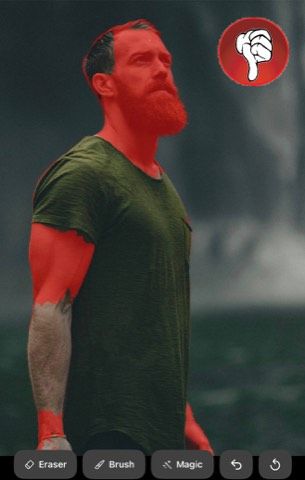
On the left the tint stops at the clothes: only bare skin is marked, and that is exactly where a tattoo can land. On the right, the same photo with a mask worth fixing — the tint has crept onto hair and clothing and has left part of the skin out.
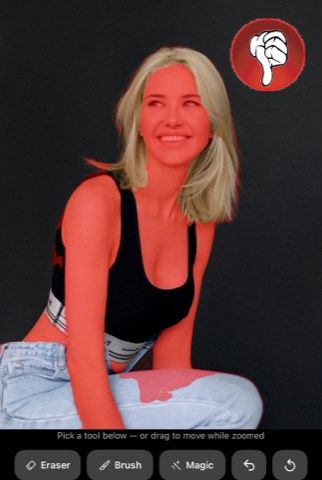
The tools
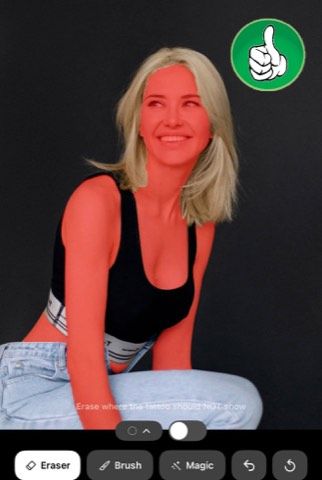
- The coloured tint marks the allowed area. The tattoo can only show where the tint is.
- Brush — paint over skin the app missed. The slider sets how wide it is.
- Eraser — wipe over anything the tattoo must not touch: clothes, hair, background.
- Magic — tap a piece of clothing and it drops out at once. Here the slider sets how picky that tap is about shades.
- Remove Clothing + Hair — the same thing for the whole photo, in one tap.
- Reset mask — go back to what the app detected and start again.
Pinch with two fingers to zoom in on the fiddly parts, and drag to move around the photo.
Worth knowing
The example photos come with a mask already prepared, so there is nothing to fix on them. And no edit to a mask is ever final: Reset always brings back the app's own version.